
Documentation » Getting started
Move to MailHawk or migrate a connected site
On this page
Changing your sending service or moving WordPress to a new host? Plan the switch so important messages keep working, and the old and new systems do not send duplicates.
Use the first setup path if you are moving from another sending provider. If MailHawk is already connected, use the site-move checklist instead of disconnecting a working site just to start again.
Before you start
Back up the database and files. Record sender addresses, Reply-To addresses, DNS records, sending-plugin settings, and pending campaigns or retries. Preserve MailHawk’s logs, quarantined messages, and remembered recipients rather than resetting its history.
Choose a controlled cutover time, pause nonessential campaigns in their own tools, and plan how urgent transactional mail will be handled. Keep the previous configuration available for recovery. MailHawk 1.4.0 declares WordPress 6.9 and PHP 7.4 as its minimum requirements.
Switch from another sending provider
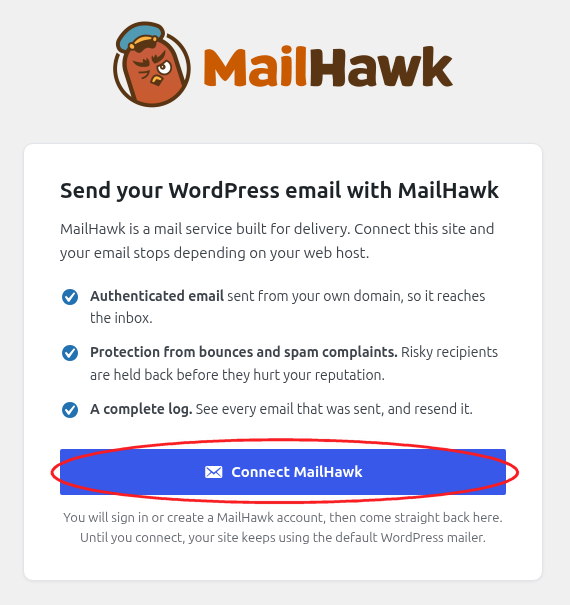
Install and activate MailHawk, then open Tools > MailHawk. On an unconnected site, choose Connect MailHawk and complete authorization.
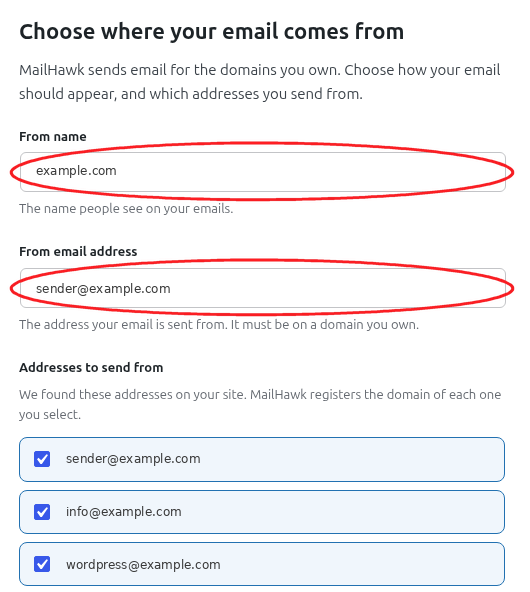
Choose From name and From email address in the setup screen. Use an address on a domain you own; check the From addresses used by your forms, shop, and other plugins too.
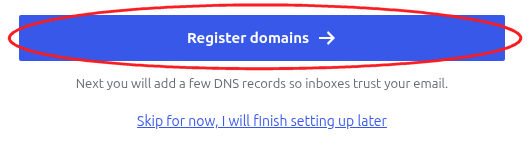
Review Addresses to send from, then choose Register domains. If a domain is already registered, use its existing configuration instead of registering it again.
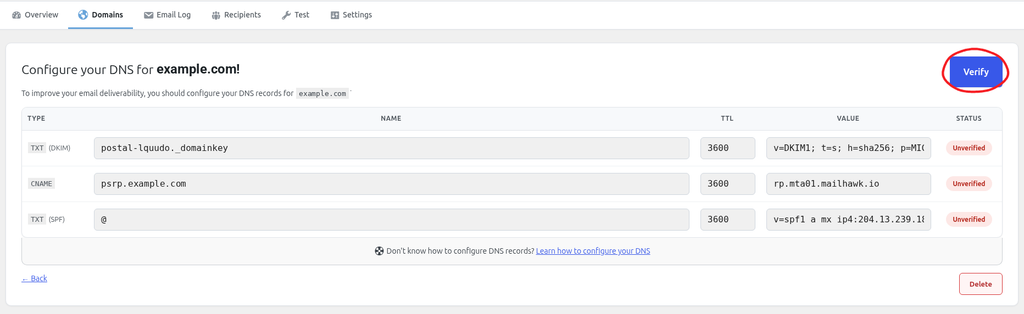
Open Domains, choose Configure beside your domain, and configure and verify its DNS records. Copy your own complete values, not the screenshot’s examples. Keep receiving-mail MX records. Retain old SPF authorizations while other services still need them; do not create a second SPF record.
Coordinate the old sending plugin’s documented controls so one intended transport handles mail. MailHawk warns if another plugin has already defined wp_mail. If Groundhogg manages your email, select MailHawk in its email settings too.
Do not treat the old SMTP plugin as automatic failover. MailHawk does not automatically hand a failed send to your previous provider. While unconnected, WordPress’s default mail path or another active sending plugin can still send; disconnecting MailHawk does not mean all mail has stopped.
Move a site that is already connected
- Before bringing a staging copy online, use your host or staging tool’s supported controls to prevent outgoing mail and live campaigns. A copied database can contain connection state and scheduled jobs.
- Move the site’s data without deleting MailHawk to reset it. Keep the current production site’s logs, recipient suppression history, and settings.
- On the intended production site, check Tools > MailHawk, sender addresses, and domain authentication. With the same public URL and sending domain, do not delete working DNS records just because the host changed.
- If the URL or account changes, confirm the correct site activation and webhook destination with MailHawk support before reconnecting or disconnecting a copy. Do not manually transplant keys or tokens as a fix.
- Keep the old copy from processing the same queues after cutover. Check that incoming webhook requests and WordPress scheduled tasks can work on the new host.
Database updates may run automatically; follow any remaining update notices after backing up. In 1.4.0, a completed database update does not prove the webhook subscription was updated successfully. Investigate missing reports rather than assuming the move is finished.
Verify a fresh, real message
- Open Test. Enter a real address you control, use a recognizable subject, and choose Send Test. Do not use the example.com addresses in these illustrations.
- Find that fresh message in Email Log and open Details. Ordinary logging must be enabled to retain this evidence.
- Check the actual receiving inbox, including spam. Then test a controlled password reset, form message, or order notification from the plugin that normally creates it.
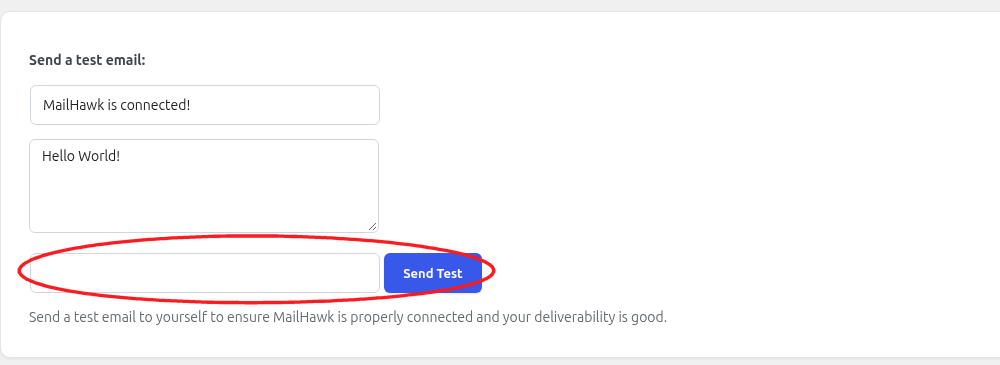
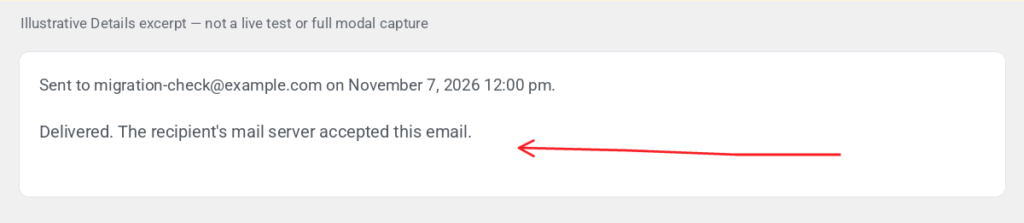
Sent means accepted by the sending service, not confirmed inbox delivery. The illustrated Delivered row below is example data, not evidence that your migration worked.

In Details, Delivered means the recipient’s mail server accepted the email. It does not prove inbox placement. Allow for reporting and scheduled-task delays; do not resend solely because a fresh status has not changed. Review errors or quarantine in Details instead of blindly retrying.
Resume or roll back carefully
Check the old provider’s queues and the site’s scheduled jobs before resuming campaigns. Account for messages already accepted by either provider before retrying or restoring a backup. Do not bulk-resend historical failures just because the transport changed.
Provider queues and subscriptions are managed separately. Disconnecting MailHawk does not cancel its subscription.
Still stuck? Open a support ticket and we will help.