
Documentation » Using MailHawk
Check your email log and delivery status
On this page
Ever find yourself needing to know if a password reset email was actually sent? MailHawk’s Email Log helps you see what happened and choose the right next step.
Find the email
- Go to Tools > MailHawk > Email Log.
- Find the recipient and subject you are checking. Use Search, or click a recipient’s address to list only the emails sent to it.
- Look at the Status column. The Sent column shows when the latest attempt was made; hover over it for the exact time.
- Hover over the row and click Details to inspect the message and any error explanation.
All, Sent, Failed, and Quarantine are always listed above the table. Delivered, Delayed, Bounced, and Reported as spam only appear when the log contains emails with that status. An absent status view does not mean the feature is unavailable.
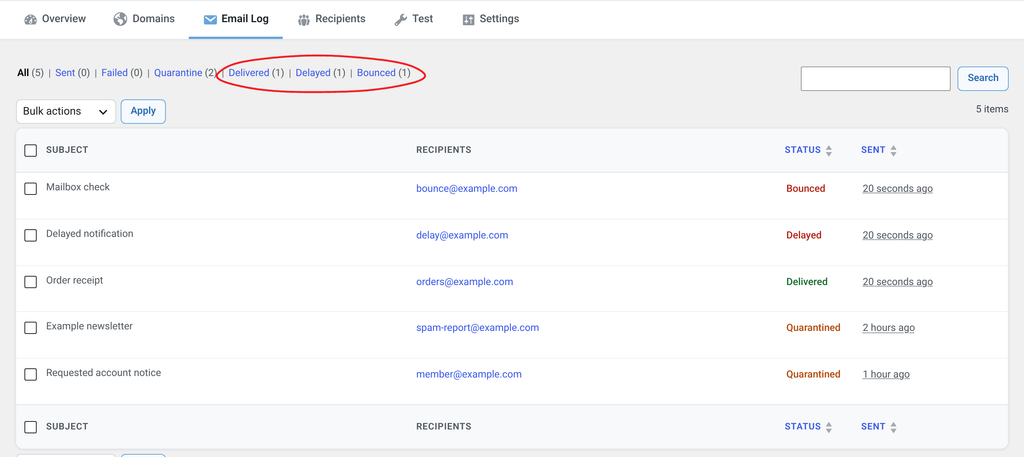
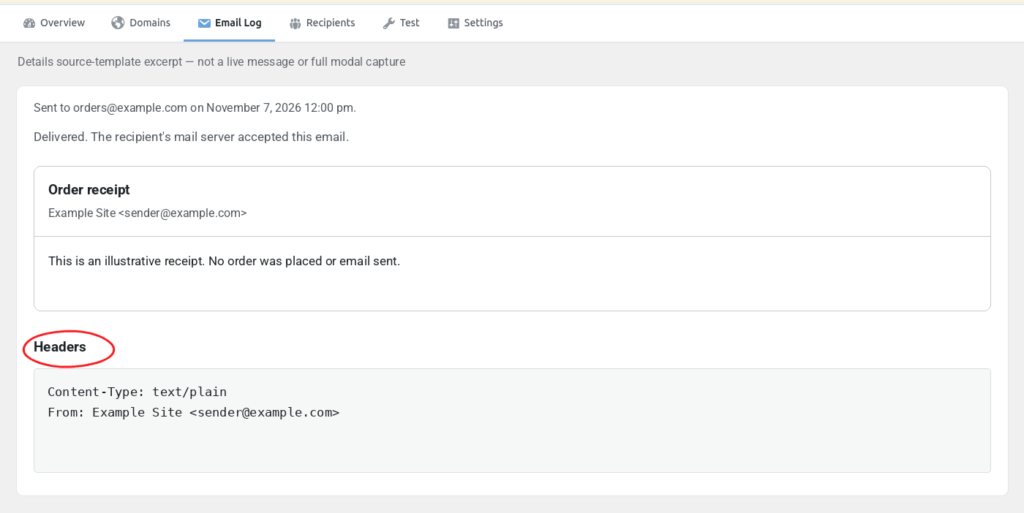
Details shows the saved recipients, the sender, a message preview, and Headers. These are saved sending headers, not necessarily every header added during delivery. Use the received message’s full headers for a receiving-side trace, and redact private links before sharing evidence.
What does each status mean?
- Sent: MailHawk accepted the email, but a final outcome has not been recorded here. This does not prove it reached an inbox.
- Delivered: The recipient’s mail server accepted the email. For an email with several recipients, every one of them must have accepted it. It may still be filtered into spam or another folder; this is not a read receipt.
- Delayed: Delivery is temporarily delayed, and the MailHawk service is still trying. Read the explanation before taking action.
- Bounced: A bounce was reported. Check the address and the receiving server’s reason instead of repeatedly sending the same message.
- Reported as spam: The recipient reported your email as spam. Review consent and stop unwanted marketing to that address. These entries have no Resend or Retry action.
- Failed: The email could not be sent or delivered. Details distinguish a failure before MailHawk accepted it from an email the service accepted but could not deliver. Failed also covers an email whose hold was cancelled at the service, and an email MailHawk turned away because the plan’s monthly limit was reached.
- Quarantined: This copy is held for review. Check it before using Release or Reject.
Sent, Delivered, and inbox placement are different things. Always use the status together with the message details and the recipient’s report.
Not every Failed email counts against the recipient. Only a rejection from the recipient’s own mail server counts as a bounce for that address. Failures on MailHawk’s side, such as timeouts, rate limits, or a cancelled hold, do not, so they don’t lead to email being quarantined.
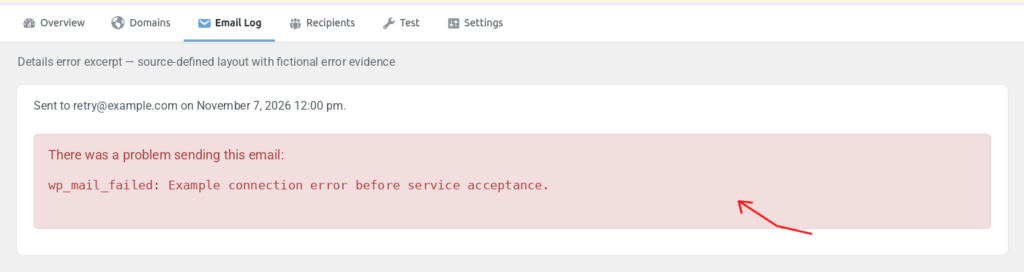
The error example below represents a failure before service acceptance, which starts with There was a problem sending this email:. An accepted message that later fails says MailHawk took this email, but it could not be delivered: instead. The literal Sent to line identifies the saved recipients; it is not delivery proof.
Why has the status not changed?
Reports can take time to reach your site. Failures, bounces, and spam complaints arrive by webhook. Delivered is not sent by webhook, so it only appears after MailHawk’s delivery-status check. That check is scheduled every 15 minutes and looks up accepted emails still at Sent or Delayed, in batches of up to 100 message IDs. When there are more, it carries on a minute later.
By default, that check covers messages between 15 minutes and seven days old. It requires a connected, unsuspended site with email logging enabled. WordPress scheduling delays, service errors, or rate limits can postpone it, so 15 minutes is not a guaranteed refresh deadline. In Tools > Site Health, the MailHawk keeps the email log up to date check tells you when the task is not running on time, for example because WP-Cron is off, or when it is paused, and why.
If MailHawk couldn’t register its webhook, a warning at the top of the MailHawk screens shows the reason. Fix the reported problem and click Try again. Since 1.5.1, updating also checks for this, so a site where an earlier update couldn’t set up the webhook now gets the warning too. If reports still seem missing and no warning appears, contact support.

Should I send it again?
Inspect Details first. Resending something that arrived can create a duplicate. Resend and Retry reuse the same log entry, so its earlier status, error, and time are replaced by the new attempt. Note them first if you need them.
Use Resend an email for a Sent or Delivered message, or Retry failed emails after fixing a sending failure. Retry is offered for Failed, Bounced, and Delayed emails, and also works as a bulk action. For held mail, follow Review quarantined emails.
Nothing in the log?
Check that the original plugin attempted the email and that you are looking at the correct site. Logging may be turned off with Disable email logging in Settings, in which case the Email Log says Email logging is currently disabled. An older entry may also have expired: entries are deleted after the Log retention period, 14 days by default. Held emails are still logged when logging is off. Missing history alone proves neither success nor failure.
Still stuck? Open a support ticket and we will help.