
Documentation » Troubleshooting
Troubleshoot connection, updates, and missing reports
On this page
MailHawk not connecting, or messages stuck at Sent? Separate the connection, domain authentication, and delivery-reporting checks. A problem in one area does not automatically mean the others are working or broken.
If the connection fails
Open Tools > MailHawk and read the displayed error. A failed attempt shows “We failed to connect you to the MailHawk service. Please try connecting again. If the problem persists, get in touch with us!”, sometimes with a second line that gives the reason.
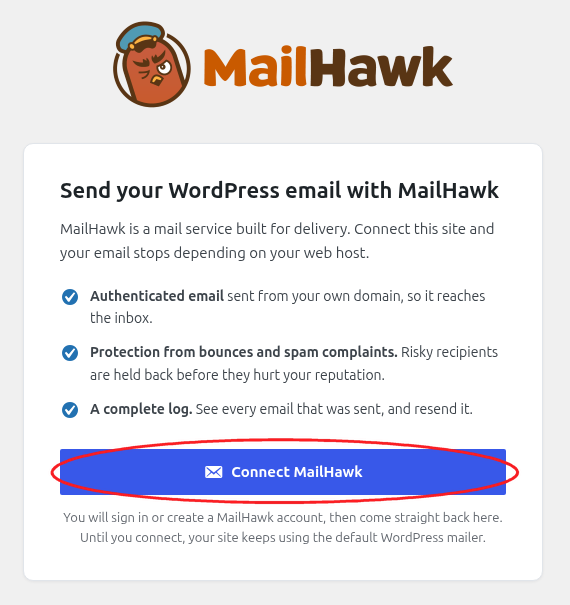
Start a fresh Connect MailHawk flow rather than reopening an old authorization link. Each connection request can be used once and expires after an hour. An old or reused link fails with “The connection request expired or was already used.”
Complete the authorization on MailHawk and return to WordPress. An empty response, a response without the expected credential information, or a firewall page is not a successful connection. The plugin also confirms that MailHawk accepts the new API key before the site is activated; if it does not, the key is cleared and the connection fails.
If an activation-limit error appears, the account has reached its limit of connected sites. Check which sites are connected to the account. Disconnecting MailHawk on a site you no longer use frees its activation. Deactivating or deleting the plugin does not. Reconnecting repeatedly does not increase the allowance. Never replace your stored API key or License Token with an example from a guide.
If domain verification fails
Connection and authentication are separate. Open Domains, click Configure, and inspect SPF, DKIM, and Return-Path individually. Follow Configure your DNS records, checking the complete hostname and the DNS zone you edited.
Since 1.5.2, each record name shows the host and the full hostname. Click the highlighted host to copy just that part, which is what most DNS providers ask for, or click anywhere else on the name to copy the full hostname. Entering the full hostname where the provider adds the domain itself creates a record like psrp.example.com.example.com, which will not verify.
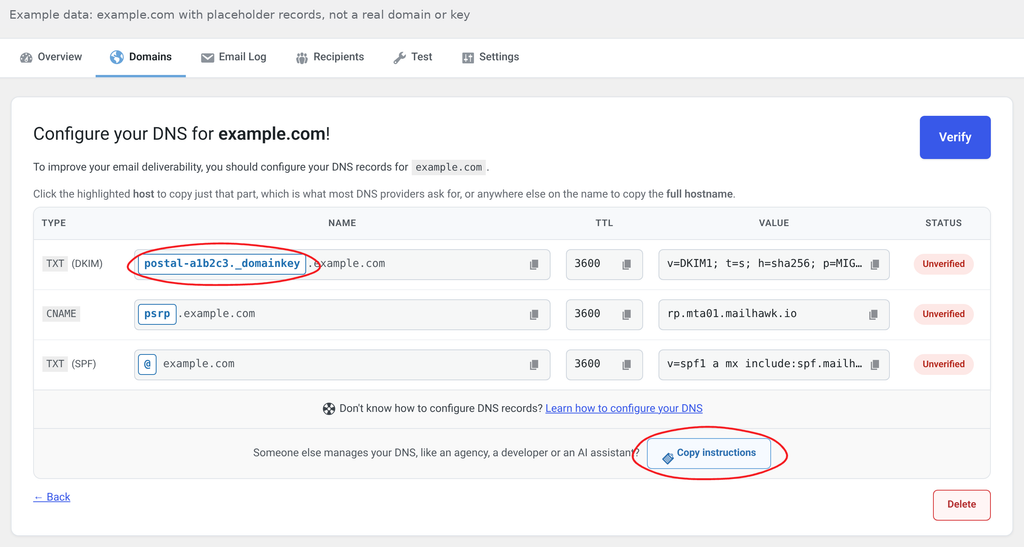
If someone else manages your DNS, click Copy instructions and send them the text. It lists every record with its host, full hostname, value, and TTL, explains what to do with an SPF record that already exists, and says where to verify.
For a subdomain whose records go in the DNS of its parent domain, the screen explains how to add the subdomain to the host. Domains under suffixes like co.uk are not treated as subdomains. A developer can add other suffixes with the mailhawk/second_level_suffixes filter.
After changing DNS, click Verify. If it still fails, MailHawk says records can take up to 24 hours to propagate, so check again in an hour or so.
After updating MailHawk
Back up first and confirm compatibility. MailHawk 1.5.2 requires WordPress 6.9 and PHP 7.4 or later.
Required database updates run the next time the admin area loads. If the “MailHawk database upgrade is required!” notice remains, click Upgrade database now! and look for “Database upgrade was successful.” Do not repeatedly reset the database version or edit tables to force a migration.
The update to 1.4.0 subscribed the webhook to spam complaints, but before 1.5.1, a failure there went unreported. Updating to 1.5.1 or later checks the subscription again, so a site where that earlier update failed now shows the webhook warning below.
If the webhook warning appears
The webhook brings bounces, failed deliveries, and spam complaints back to the site. MailHawk sends these events in batches, every 15 minutes by default. When registering it fails, MailHawk screens show “MailHawk couldn’t register its webhook. Until it is registered, bounces and spam complaints can’t reach your site, so MailHawk can’t learn which recipients to hold email for.” The reason is shown below.

- Read the reason shown in the warning.
- Ask the host to check that the site’s REST API is reachable from outside, that outgoing requests to MailHawk are allowed, and that no firewall blocks either. The webhook address is listed under Tools > Site Health > Info > MailHawk.
- Click Try again in the warning after addressing the cause.
- On success, MailHawk shows “The webhook is registered. MailHawk will now learn from bounces and spam complaints.” If the warning returns, read the new reason and follow up.
No warning means the last registration succeeded. If complaint events are still missing, open a support ticket. Do not disable signature verification: webhook requests without a valid signature are intentionally rejected.
If delivery statuses are slow
Check Email Log details before resending. Delivered comes only from the scheduled status check, not from the webhook, so a delivered email shows Sent until that check runs. The check is a catch-up mechanism, not an instant delivery monitor. It needs WordPress scheduled tasks, email logging turned on, and a connected, unsuspended account.
By default, it runs every 15 minutes and looks at Sent or Delayed entries between 15 minutes and seven days old, up to 100 entries per request. When there is more to check it continues a minute later. After an error, it pauses, usually for 30 minutes, or for as long as MailHawk asks when rate-limited. WordPress cron, processing limits, and pauses can delay it; there is no guaranteed refresh time.
Open Tools > Site Health. When everything is fine, it passes the check “MailHawk keeps the email log up to date”. It reports “MailHawk cannot update the email log by itself” when the task is more than 30 minutes overdue, which usually means WP-Cron is not running. It reports “MailHawk could not update the email log lately” while the check is paused, with the reason.
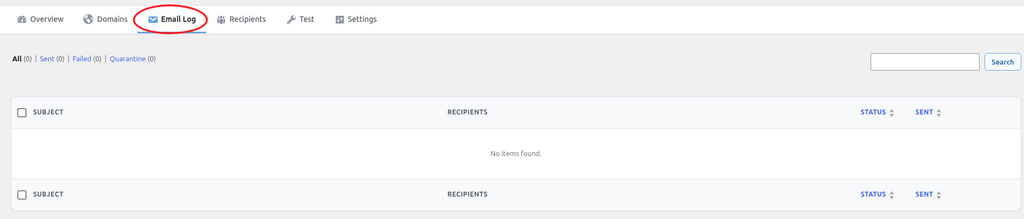
If the log is empty, check the status views and search whether Disable email logging is turned on in Settings, and the Log retention setting (14 days by default) before concluding that a message was never sent. When logging is off, the Email Log shows “Email logging is currently disabled. You can re-enable it in the settings.” An empty local log is not evidence that the receiving inbox accepted a message.
Ask the host to check delayed WordPress scheduled tasks rather than increasing retry counts to force a status refresh. Retries only resend emails that never reached MailHawk; they do not refresh statuses.
Still stuck? Open a support ticket and we will help.