
Documentation » Troubleshooting
Whitelist our IP addresses
On this page
Does your receiving mail server block legitimate email sent through MailHawk? A receiving-side IP allowlist can help when the server’s filtering rules are the cause. This can affect important messages such as contact-form notifications and WooCommerce emails.
MailHawk’s published sending IP addresses
The following seven addresses are published in MailHawk’s IP allowlisting guide, checked November 7, 2026. This confirms the published list, not an independent live check that every address is currently sending mail or that the list covers every account’s route.
| Published sending IPv4 address |
|---|
| 209.141.39.55 |
| 209.141.38.29 |
| 209.141.38.248 |
| 209.141.38.217 |
| 198.251.80.53 |
| 198.251.80.59 |
| 198.251.80.189 |
Sending infrastructure can change. If your mail administrator needs a confirmed current set for your account, ask MailHawk support and match it against the receiving server’s connection logs or trusted received-message headers before applying a broad exception.
Add the IPs to your receiving filter
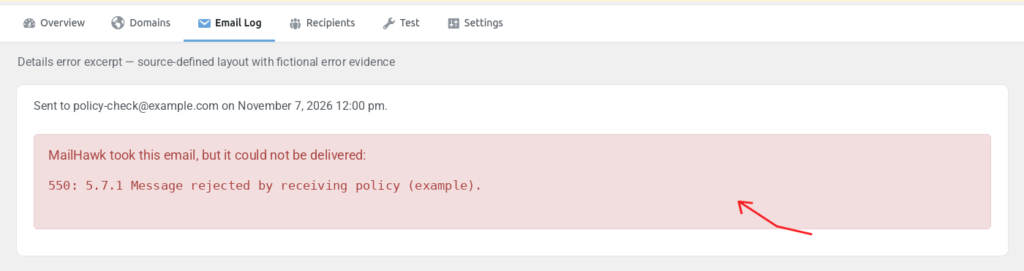
- On the sending site, open Tools > MailHawk > Email Log, find the affected message, and click Details. Record its status, complete error, and attempt time with its time zone. Include a service message ID if available.
- Ask the receiving mail administrator to confirm that an IP-based filtering rule caused the rejection. A missing mailbox, failed authentication, or MailHawk quarantine needs a different fix.
- Open the receiving provider’s incoming-mail IP allowlist, or have its authorized administrator do so. Add the addresses above as individual hosts where that list is appropriate. Providers use different control names; do not enter the list into a sender-address field or a DNS record.
- Keep the rule narrowly scoped. Do not turn these separate IPs into a wider network range or disable protection for all incoming mail. If the provider requires CIDR notation, a single IPv4 host uses /32.
- After the rule is saved, send one controlled test. Check the fresh MailHawk log and the actual receiving folders. Retain the exception only if it addresses the identified problem, and review it when sending infrastructure changes.
The example below shows fictional receiving-policy evidence, not proof that these IPs were blocked or that an allowlist was added. Use your own server’s diagnostics.
Still not receiving the email?
Delivered means the receiving server accepted the message, not that it put it in the Inbox. Check Junk, mailbox rules, and forwarding. For Delayed mail, read the reason and allow the sending service to handle its delivery retries rather than repeatedly resending.
An IP allowlist does not repair SPF or DKIM, release held mail, or provide marketing consent. Trusting an address in MailHawk is a separate outgoing-quarantine feature, not a receiving-server IP rule.
Still stuck? Open a support ticket and we will help.