
Documentation » Using MailHawk
Export or erase a person’s MailHawk data
On this page
MailHawk works with WordPress’s personal-data tools so you can review the information your site keeps about an email address. Exports, erasure, retention, and suppression serve different purposes, so check the result rather than assuming every record is handled identically.
Export the person’s data
- Open WordPress’s Tools > Export Personal Data.
- Enter the person’s email address in Username or email address. Keep Send personal data export confirmation email selected unless identity has already been verified through your authorized process.
- Choose Send Request. This sends a real confirmation request; it is not just a preview.
- Follow WordPress’s verification process. When the request is confirmed, use its available actions to generate and download the export.
- Review the MailHawk sections before securely providing the export through your normal privacy-request process.
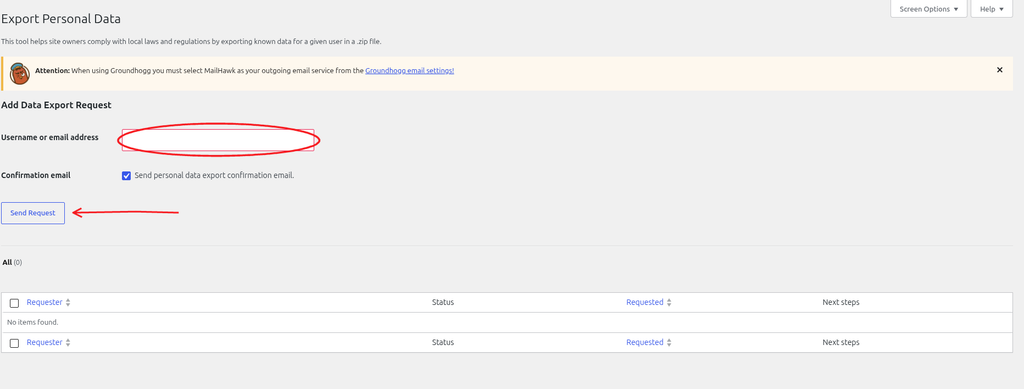
MailHawk’s export can include retained email-log information such as sender, subject, date, status, message ID and a plain-text excerpt of message content. It can also include the remembered recipient’s address, trust or complaint information and bounce history.
This is not a guaranteed copy of the original message, an attachment archive or all information held by the MailHawk service. Older log entries may already have expired. MailHawk exports up to 2,000 plain-text content characters per retained message; it omits other recipients from the recipient list. Review the message content itself for information about other people before releasing an export.
Erase eligible local data
- Open Tools > Erase Personal Data.
- Enter the requested address and keep Send personal data erasure confirmation email selected unless identity is already verified through your authorized process.
- Choose Send Request and complete WordPress’s verification process. Do not bypass identity checks merely to make the request faster.
- Run erasure only for the confirmed address, then read the completion messages, including retained-item explanations.
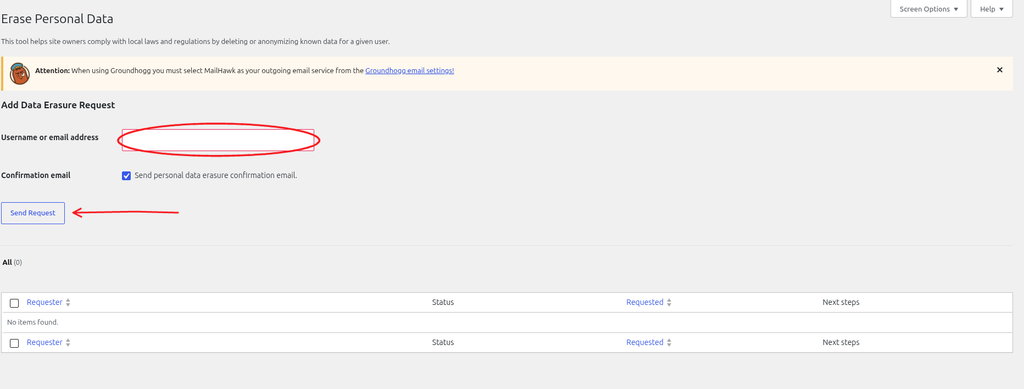
MailHawk removes matching log entries sent only to that person. Entries also sent to other people are retained by this eraser so their shared history is not removed for everyone. Those entries remain subject to applicable log cleanup.
Eligible remembered recipient records can be removed, but spam-complaint records are retained to preserve suppression and avoid emailing a person who reported the mail as unwanted. Do not manually remove a complainant to work around this protection; the admin Remove path in 1.4.0 is not consistent with the privacy eraser’s safeguard.
Erasing local plugin data is not the same as removing all service-side information, cancelling an account or changing another CRM’s records. Review those systems separately when responding to a request.
Understand retention
Ordinary email-log retention is set in Tools > MailHawk > Settings and has an effective minimum of one day. Held mail is retained even when ordinary logging is disabled; by default, it is kept for at least 30 days or normal retention if longer.
Remembered recipient records are separate from message retention. The default 90-day bounce-risk memory does not promise that the recipient row is erased after 90 days.
Update your privacy information
Open Settings > Privacy in WordPress and review MailHawk’s suggested policy text. Adapt it to your actual configuration, including ordinary logging, held mail, recipient records, and the service receiving message data.
Treat the suggestion as a starting point, not a guarantee of legal compliance. If ordinary logging is disabled, still explain retained quarantine and recipient information where applicable. Check your legal obligations before deciding what must be erased or retained.
Need help understanding a MailHawk result? Open a support ticket using the minimum personal information necessary.
Still stuck? Open a support ticket and we will help.