
Documentation » Using MailHawk
Change settings and manage log retention
On this page
MailHawk’s Settings let you choose sender defaults, control ordinary logging, and configure failed-email retries. Before changing retention or removing the plugin, check what history you still need.
Go to Tools > MailHawk > Settings. The page has three boxes: Defaults, Email Log, and Danger Zone. They are one form, so any Save Changes button saves the whole page. After saving, test the behavior you meant to change.
Set the default sender
Default From Name and Default From email address replace WordPress’s own fallback sender (the name “WordPress” and wordpress@ your site’s domain). An email that already sets its own From, through its headers or another plugin’s settings, keeps it.
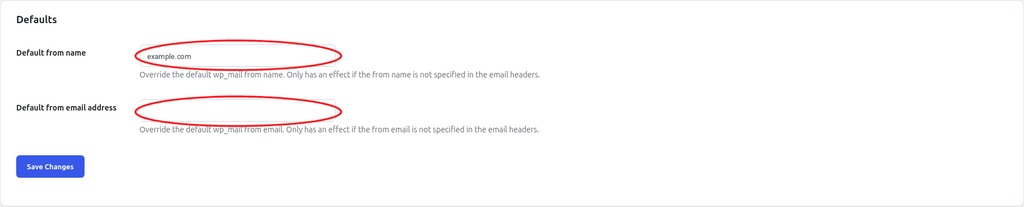
Use an address on a domain you control and have authenticated in MailHawk. A blank name or an invalid address is not saved, so the previous value stays in place. MailHawk also sends its own notices, such as quarantine reminders, from the default address.
To check the result, send a test from the Test screen. The From list suggests your default from address first and sends with your default from name. Then test a real message from your form, store, or newsletter plugin.
Choose what is logged
Disable email logging turns off ordinary sent-email logging. Quarantined emails are still logged so they can be reviewed and released. While logging is off, the Email Log screen shows a notice, the retention and retry settings are hidden, and automatic retries do not run.
Disabling logging is therefore not a promise that MailHawk stores no personal data. Remembered recipient information is separate, and held messages still contain information needed for review. Turning logging off does not erase existing entries; they are removed by the normal retention cleanup.
If you save Settings while logging is off, Retry failed emails? is saved as off. After you turn logging back on, check that setting again.
Set log retention
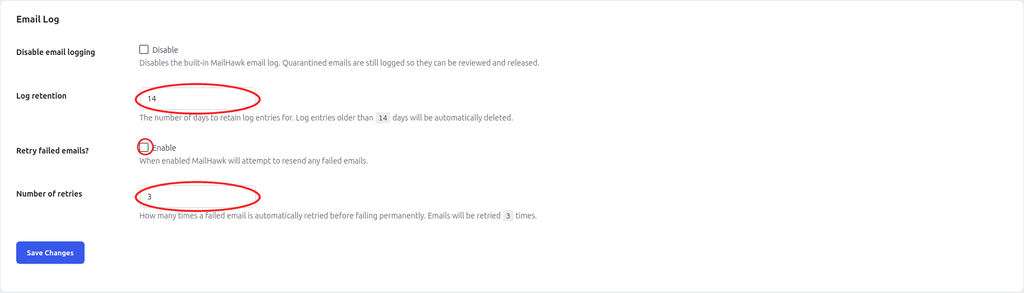
Log retention is the number of days ordinary entries are kept. The default is 14 days, and the minimum is one. Entering 0 or leaving it blank keeps the current value.
By default, quarantined entries are kept for the longer of your log retention and 30 days. Quarantine retention is not a separate setting on this screen.
Shortening retention can delete older evidence at the next cleanup. Save any information you are entitled and required to keep before changing it; do not retain private content unnecessarily.
Cleanup runs once a day, uses the site’s time zone, and deletes entries in batches. If a large cleanup runs out of time, it continues a minute later rather than finishing in one request. It is not a guarantee that an entry disappears at an exact minute.
Releasing, resending, or retrying an email updates the same entry’s send time, which restarts its retention period. The log is not an immutable record of every attempt.
Configure retries
Retry failed emails? and Number of retries control the hourly retry task. It runs only when retries are enabled and email logging is on, and it only picks up failed emails with no MailHawk message ID that have attempts left. The default is 3 retries. It does not resend emails MailHawk accepted that later bounced or could not be delivered.
Since 1.5.0, the retry task waits while MailHawk is asking the site to slow down, and an attempt turned away for that reason does not use up a retry. Version 1.5.1 fixed the bulk Retry action in the log.
Read Retry failed emails before enabling a large number of attempts.
Disconnecting and uninstalling
Disconnect MailHawk is in the Danger Zone box. It removes the site’s connection; it does not cancel your subscription. The button acts right away, without a confirmation step, and the site goes back to sending through the default WordPress mailer. Confirm your replacement sending method before disconnecting a live site.
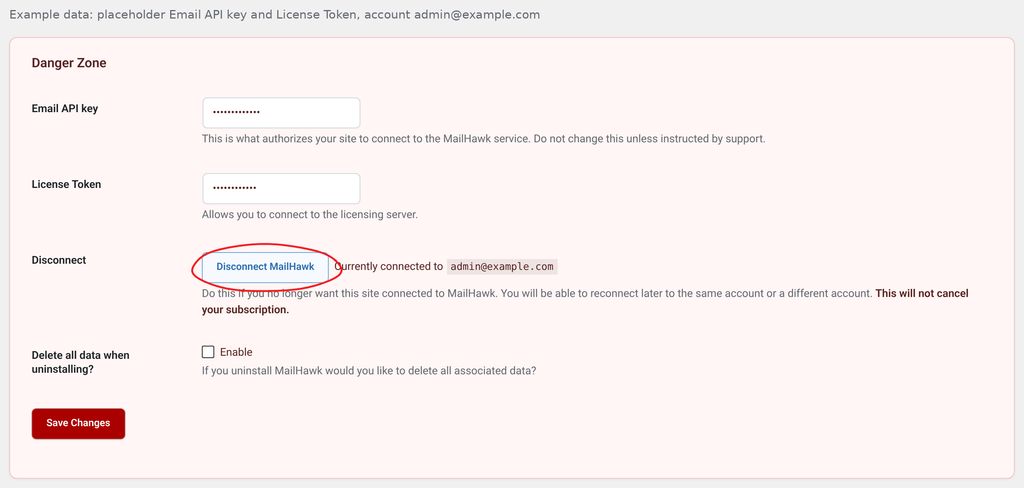
Disconnecting also tells MailHawk to release this site, so it no longer counts against your plan. Deactivating or deleting the plugin does not do this, so disconnect first if you are removing MailHawk. See Understand usage, account limits, and disconnecting.
Delete all data when uninstalling? Controls whether deleting the plugin also removes its local data: the email log, the remembered recipients, and MailHawk’s saved settings, including the Email API key and License Token. Review that choice and back up when appropriate before deleting the plugin. The scheduled cleanup, retry, and delivery-sync tasks are removed on uninstall even when data is kept.

Leave the Email API key and License Token unchanged unless support specifically guides you. Never share them in screenshots or public issues.
Still stuck? Open a support ticket and we will help.