
Documentation » Using MailHawk
Manage remembered recipients
On this page
Want to know why MailHawk keeps holding mail to an address? The Recipients screen shows what MailHawk has learned from trust decisions, hard bounces, and spam complaints.
This is not your complete subscriber list or address book. An address appears when you trust it, or MailHawk records a bounce or complaint. Keep subscriptions and marketing consent in the tool that manages your audience.
Open the recipient records
Go to Tools > MailHawk > Recipients. In MailHawk 1.4.0, the screen shows up to 200 recently updated records, not a searchable directory of everyone you have emailed.
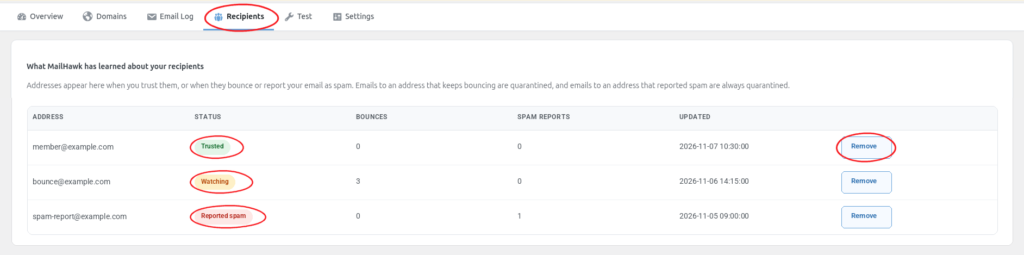
The columns are Address, Status, Bounces, Spam reports, and Updated. Each row also has a Remove button. The statuses mean:
- Trusted: the address has been allowed to bypass quarantine while that trust remains in place.
- Watching: MailHawk is keeping delivery history, such as hard bounces. This label alone does not mean every email to the address is held.
- Reported spam: the address reported your email as spam. Keep that suppression information and do not try to trust the address.
The examples below are illustrative, not real recipients: member@example.com is Trusted; bounce@example.com is Watching with three bounces; spam-report@example.com has one spam report.
To understand an actual held message, open its Email Log details. The remembered recipient record is not a delivery receipt.
Trust an appropriate address
Only trust an address you have checked and genuinely expect to receive the site’s email.
- Find Trust an email address on the Recipients screen.
- Enter the complete address, checking it for typing mistakes.
- Click Trust.
- Review the resulting record and its Trusted status.

Use the form above the table; there is no separate Trust button on each row. Trusting an address here does not send an email or release messages already held in quarantine.
You can also use Release & Trust for an appropriate message in the quarantine log. That action attempts to send the held message and trusts eligible recipients. It is not just a change to the recipient record.
Trust does not guarantee delivery or provide marketing consent. A hard bounce withdraws trust, and a retained spam complaint prevents the address from being trusted. If trust is refused, check the address and its spam-report history rather than deleting the record to bypass the refusal.
Understand bounce memory
Hard bounces add risk. With default behavior, that risk ages out 90 days after the latest bounce. This does not erase the saved row, reset its displayed count, or prove the mailbox is now valid. Check an address before trying it again.
Remove a record carefully
Remove forgets local remembered information. It does not unsubscribe someone, remove them from your CRM, or delete the sending service’s suppression information. It can remove local trust or the bounce history that was holding mail. It does not release an email already in quarantine.
Before clicking Remove, check the address, status, and counts. Only remove an eligible record when forgetting that information is genuinely appropriate, then review the updated list.
Important for MailHawk 1.4.0: Remove also appears beside Reported spam records. Do not use it to clear a complaint and resume sending. This admin control can delete the local record even though complaint suppression is intended to be kept. A disappearing row is not permission to email the person again.
If the list is empty
Nothing to show yet. means there are no remembered records to display. It does not mean no mail has been sent. If MailHawk instead says the recipients table has not been created, back up the site and follow its database-update notice.
Disputing a complaint? Leave the record intact and open a support ticket with the relevant status, without sharing unnecessary private content.
Still stuck? Open a support ticket and we will help.