
Documentation » Using MailHawk
Respond to a spam complaint
On this page
A spam complaint means a recipient reported your email as unwanted. Treat it as a signal to stop unwanted marketing and review how the person joined your audience, not as a reason to resend the message.
MailHawk 1.4.0 remembers complaints reported by the sending service and queues a digest for the site owner. This depends on the reports the service receives and passes to your site. An email landing in a spam folder does not, by itself, mean a complaint was reported.
Review the complaint in Email Log
- Go to Tools > MailHawk > Email Log.
- Find the relevant message with Reported as spam.
- Hover over its subject and open Details.
- Check the recipient and original message, then review the person’s consent and subscription history in your CRM or newsletter tool.
The illustrative log below shows one complaint for spam-report@example.com about Your weekly update. These are example values, not a real complaint.

The Reported as spam filter appears only when the retained log contains matching entries. Its absence is not proof that nobody has complained. Failed, Delayed, and Bounced describe other outcomes; do not treat them as complaint reports. See checking your email logs for more help.
Check the remembered address
Open Tools > MailHawk > Recipients. Look for the address with Reported spam and check its Spam reports count. The wording differs slightly from Email Log’s Reported as spam label. This screen shows up to 200 recently updated records, not your complete subscriber list.
In the example below, the remembered address has one spam report and no bounces. MailHawk withdraws trust after a complaint and refuses to trust an address while its complaint record remains. The sending service also applies its own suppression.

Do not trust, re-add or re-subscribe the person simply to resume marketing. Remove can still appear beside complaint records in 1.4.0, and this admin action can delete the local record. Leave it intact: a disappearing row is not permission to email the person again.
Release & Trust does not grant trust to a retained complainant. A release is still a sending attempt, and the service may suppress it. Do not use release controls as a workaround.
Read the owner’s complaint digest
MailHawk schedules one digest for the site’s WordPress administration email address about ten minutes after the first queued complaint, rather than sending an immediate notification for every event. Actual arrival depends on webhook receipt, WordPress scheduled tasks, and delivery of the notification itself.
The subject starts with Spam complaint: or Spam complaints: and includes the site domain. The digest lists Recipient, Subject, and Reported by. A dash can appear when the original subject is no longer available in the log, or the service did not supply a reporter.
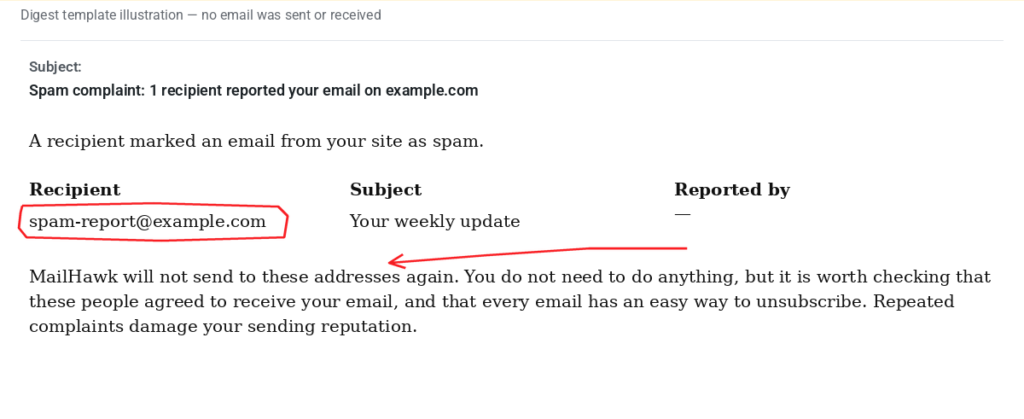
The queue keeps up to 200 recent entries. Repeated delivery of the same event can produce repeated digest rows in 1.4.0. Its count is not a guaranteed number of distinct people, and the digest is not an exhaustive audit report.
If you use Groundhogg
The owner digest works without Groundhogg. If Groundhogg is active and the matching contact already exists, MailHawk also changes that contact’s marketing preference to complained. It does not create a new contact for this step.
If you use another CRM or newsletter plugin, review that tool’s audience and suppression handling separately. Do not assume MailHawk changes every plugin’s subscription records.
If the digest or report is missing
Check the WordPress administration email address, the notification’s delivery and spam folder, and whether scheduled tasks are running. Retention can remove the original log entry without making the complaint safe to ignore.
Missing reports after an upgrade? Open a support ticket, even if the database update finished without a warning; the webhook subscription may need checking. Include the relevant subject, status, and timestamp with its time zone, but avoid unnecessary private email content.
Reduce future complaints
Use clear signup wording, send what people agreed to receive, and make unsubscribing easy. Review the signup or unsubscribe problem rather than trying another sending route. See collecting consent and confirming subscriptions.
Still stuck? Open a support ticket and we will help.